Image: Alaina Yee / Foundry
At a glance
Expert’s Rating
Pros
- Polished, clean interface
- Multitude of entry types (logins, notes, etc), with the ability to pack in info fields
- Autofill works smoothly
- Large type for password viewing!
- Unique “travel mode”
Cons
- Complex login system compared to rivals
- Family plan subaccounts can be nuked instantly (RIP)
- No backup codes for 2FA
- Technical details aren’t easily found in settings or documentation
Our Verdict
1Password’s clean, polished vibe makes password management less of a headache, but its login system may feel too complex for less tech-savvy users. Its Family plan also allows the family manager to instantly nuke an affiliated account, placing a harsh burden on subaccounts owners to ensure their data is safely backed up. Overall, this service is best for users who want streamlined password management, but don’t mind going more hands-on with setup and account backup details. For everyone else, more straightforward (and cheaper) options will be better matches.
Price When Reviewed
This value will show the geolocated pricing text for product undefined
Best Pricing Today
Price When Reviewed
14 day trial. From $2.99 per month, $36 a year
Best Prices Today: 1Password
1Password started as a macOS app, way back in 2006—and you can still feel that influence in its design. Even though the service now works across all major operating systems, the team still leans into a particular approach. This password manager is streamlined and runs smoothly, but users shouldn’t expect to see behind the veil.
It feels very Apple, and as a predominantly Windows user, spending time in 1Password chafes a bit, even with how good it can be. Much like when I use Apple products.
You have to be a certain kind of person to like this service, and I don’t mean that as a euphemism. 1Password operates in a specific way, and you have to accept that for what it is—or potentially get tripped up by its gotchas and quirks.
For some people, these details will be dealkillers. For others, they won’t even register.
Read on to learn more, then see our roundup of the best password managers for comparison.
1Password in brief
- Cost: $36 per year (annual rate)
- Family plan available? Yes ($60 per year, annual rate)
- Browsers: Chrome, Firefox, Edge, Safari, Brave
- Apps: Windows, Mac, Linux, Android, iOS
- Passwordless login: No
- Passkeys supported: Yes
- 2FA TOTP supported: Yes
- Emergency contact supported: No
- Account recovery possible? Yes
What are 1Password’s plans and features?
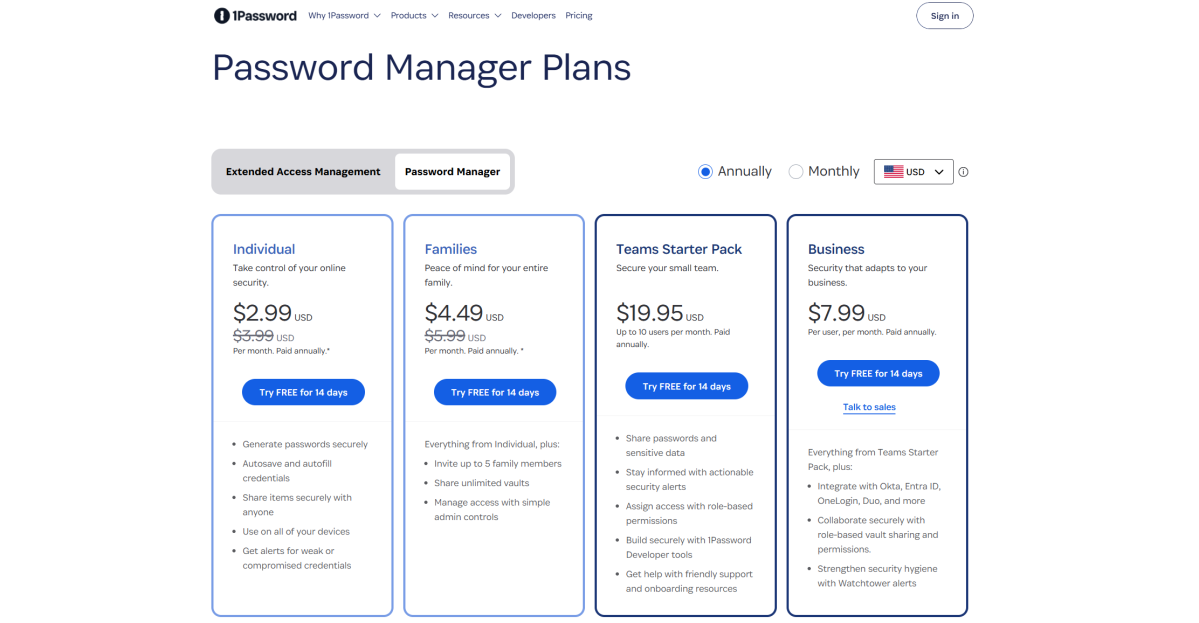
1Password only offers paid plans, either Individual or Family subscriptions. Family plans support up to five members that can share unlimited vaults and invite guests to specific vaults. You can also add additional members to a Family plan at $1.39/month per user.
Note: For 1Password, a “vault” is equivalent to folders in other password managers, rather than the name for your whole collection of saved data.
1Password
Individual plans include expected features like storing passwords, passkeys, 2FA one-time codes, and secure notes. You also can share credentials and use up to 1GB of cloud storage for important documents. Additionally, the service monitors your data for compromised passwords (via the HaveIBeenPwned database) and notifies you of saved sites that support two-factor authentication (2FA).
1Password also provides an unique feature that hides specified vaults. Called Travel Mode, that data will remain hidden even if you’re forced to unlock the app by government officials. (For example, border patrol.)
1Password lacks one major feature compared to other password managers: It does not allow you to set a legacy or emergency contact. For estate planning, you must provide your heirs a copy of your account password, Secret Key (more on this in a moment), and your 2FA method (if applicable).
1Password platform support
You can use 1Password on many platforms and devices. The company officially supports Chrome, Firefox, Edge, Safari, and Edge with browser extensions, and it has standalone apps for Windows, Mac, Linux, Android, and iOS.
PCWorld
You can sign up directly on 1password.com without having to download an app or browser extension—and also regularly use the manager this way. However, the experience is more seamless in the extensions and apps.
1Password support options
If you ever have questions or need help with your account, you can use the 1Password chatbot or visit support.1password.com 24/7. For direct questions, you can fill out a form on the 1Password website to file a help ticket.
How does 1Password perform?
To evaluate 1Password for this review, I used its desktop app for Windows 11, browser extensions for Chrome and Firefox in Windows 11, and the Android app. I also lightly used the iOS app.
Is it easy to sign up for 1Password?
Creating a 1Password account is more complex than other services, as it uses a two-secret system. Think of it as two-step password.
PCWorld
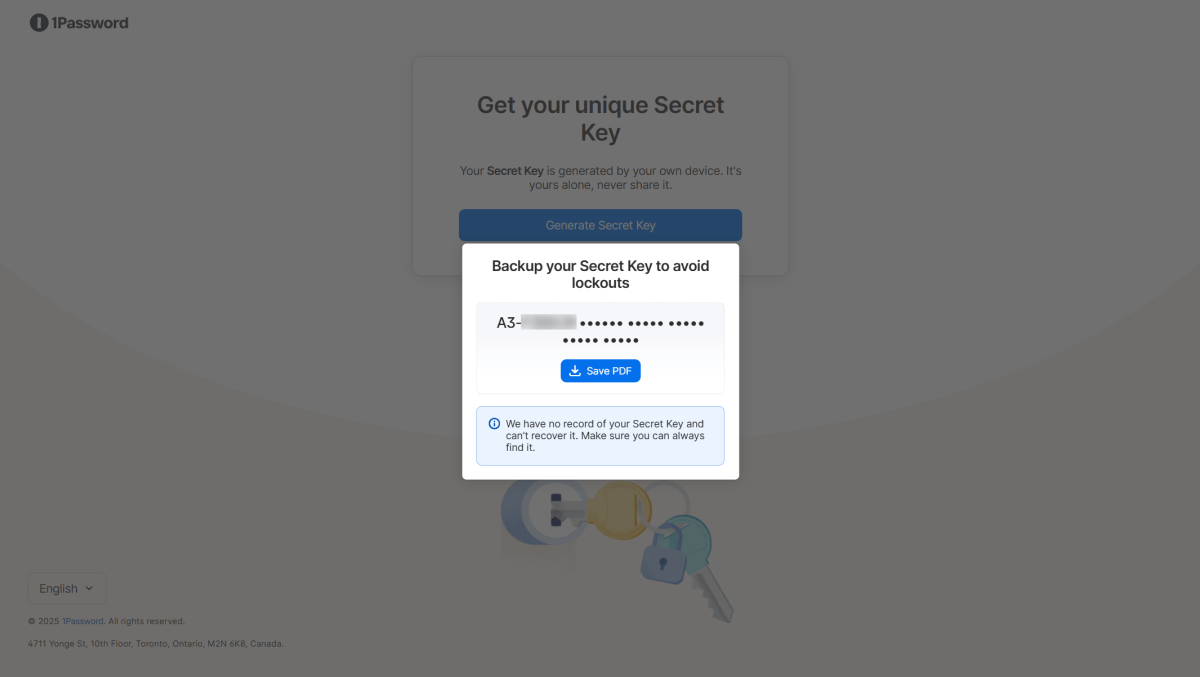
The first part is your actual password, with a minimum of 10 characters required. Afterward, the system generates a Secret Key. This string of random letters and numbers is also necessary for logging in. If you think your Secret Key is compromised, you can regenerate it—but you’ll have to remember to save the new info.
Speaking of, 1Password automatically generates an “Emergency Kit” PDF, which contains your Secret Key. The idea is to print or save the PDF somewhere you can access it again, in case you need it. (Also, if you ever need it, 1Password automatically saves your account password and secret key as an entry in your Personal vault, too.) But while a prompt to save the PDF happens automatically, you still have to choose to download it to your PC—which I think is an oversight on 1Password’s part. A user could overlook this step and then lock themselves out down the road.
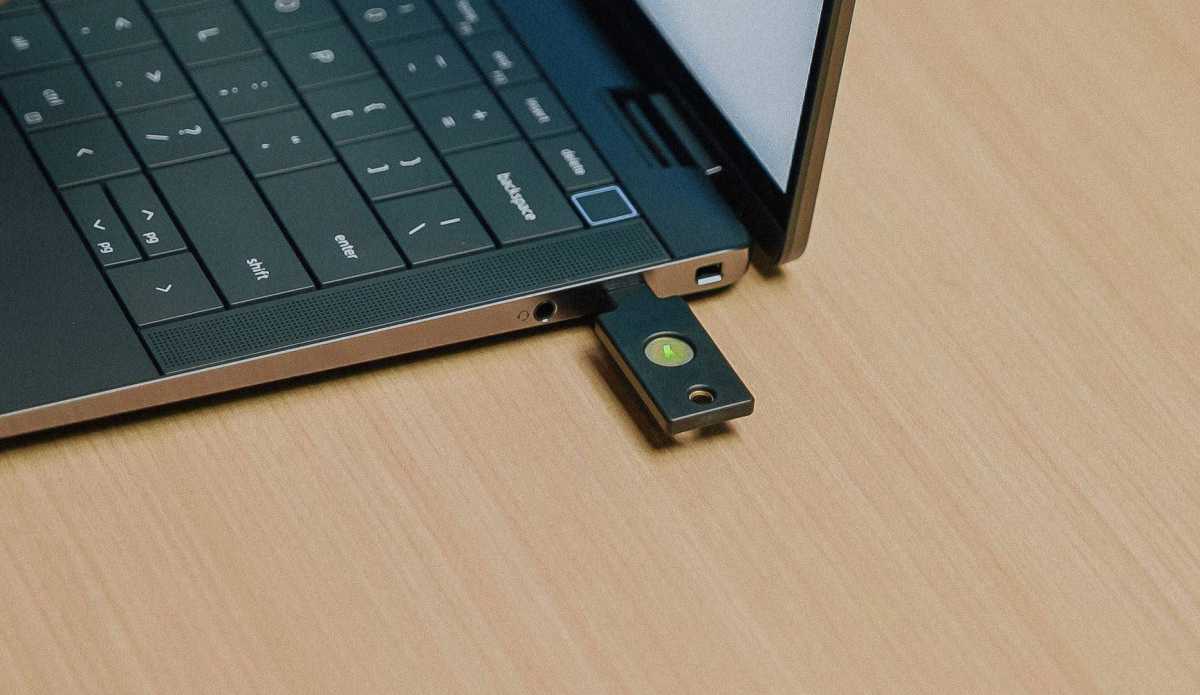
You can also set up 2FA, either through an app that generates one-time passwords or with a hardware security key (e.g., a YubiKey or Google Titan Security Key).
How easy is it to recover a 1Password account?
You can create a recovery key for a 1Password account, but like the Emergency Kit PDF, it is not an automatic process. I’d prefer to see this step incorporated into account setup, so that users immediately know it’s an option and create one right away.
HOWEVER: If you enable two-factor authentication, 1Password does not offer backup or recovery codes for individual accounts or Family Organizers (accounts that manage other family accounts). If you lose access to your 2FA app or security key, you’ll end up stuck. I highly recommend setting up 2FA on another device, on an extra security key, or creating an encrypted backup of your 2FA app so you can get access to the one-time codes again. (Or all of the above.)
YubiKey
Advanced users won’t find this an issue, since this methodology will feel comfortable and familiar. But figuring out a DIY recovery process for 2FA feels unnecessarily manual in the year 2025, especially compared to rival services. For average users, this “gotcha” for 2FA isn’t clear enough and makes using 1Password more cumbersome than necessary.
Users part of a family plan managed by another person can ask the Family Organizer for help with recovering access to the account.
As for data retention, if you end a 1Password subscription, your data will transition to a read-only state (“frozen account”). It won’t be deleted immediately. However, you will only be able to export your data—to make any changes, edits, or additions, you must renew your subscription.
What will delete an account is a Family Organizer kicking a family member out of the group. The account does not revert to an individual account. So if you are part of a family group, make backups of your data, just in case an administrative mistake happens.
How easy is it to sign into 1Password?
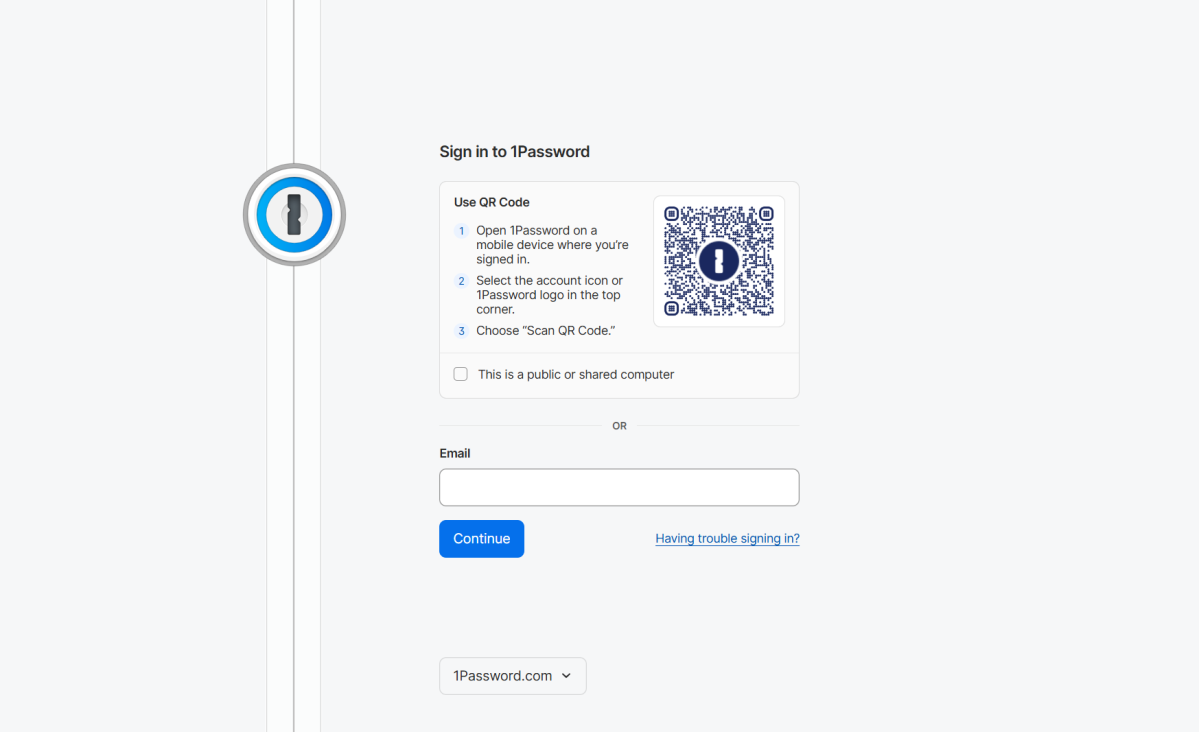
If signed into a phone, 1Password lets you set up other devices through a QR code—which goes far, far faster than the two-secret login method.
Arguably, this feature does make your account potentially less secure if you accidentally permit an unwanted device. But for most people, this risk should be low, so long as you control all the devices being logged into.
1Password does not support passwordless login at this time—so you can’t use biometrics or a passkey to get into your 1Password account, unlike with rival services.
PCWorld
Is it easy to import passwords into 1Password?
1Password allows you to import passwords via CSV from other password managers. If coming from Bitwarden, you can import more securely through an encrypted .json file. 1Password will also support the FIDO Alliance’s Credential Exchange Protocol (CXP) starting in early 2026, which allows secure transfer of passkeys in addition to passwords between apps and services with CXP enabled.
The import process for CSV files is smooth, with a streamlined and clear approach to data classification before the information gets pulled in. I fed 1Password a sample set of about 30 passwords with minimal issues. The exception was my Best Buy entry, which was inexplicably marked as a weak password. (To my best knowledge, it is unique and not compromised.)
Weak and compromised passwords like password and 123456 were flagged immediately upon import, as did one of my own that a website leaked long ago.
How easy is 1Password’s interface to use?
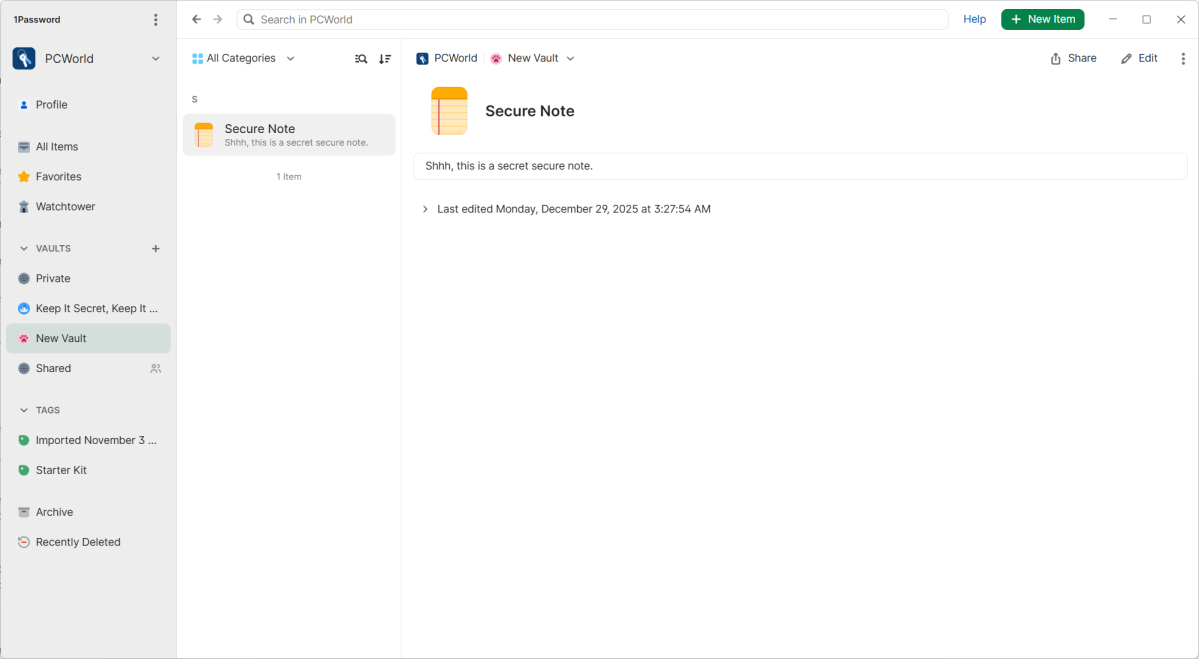
I like 1Password’s clean, polished interface, though its heavy reliance on navigation sidebars for desktop views feels dated. I tended to prefer the mobile app because it didn’t have multiple split windows. I also found 1Password’s restriction of certain settings to the web interface a bit confusing. (More on this in the “What else does 1Password let me do?” section below.)
PCWorld
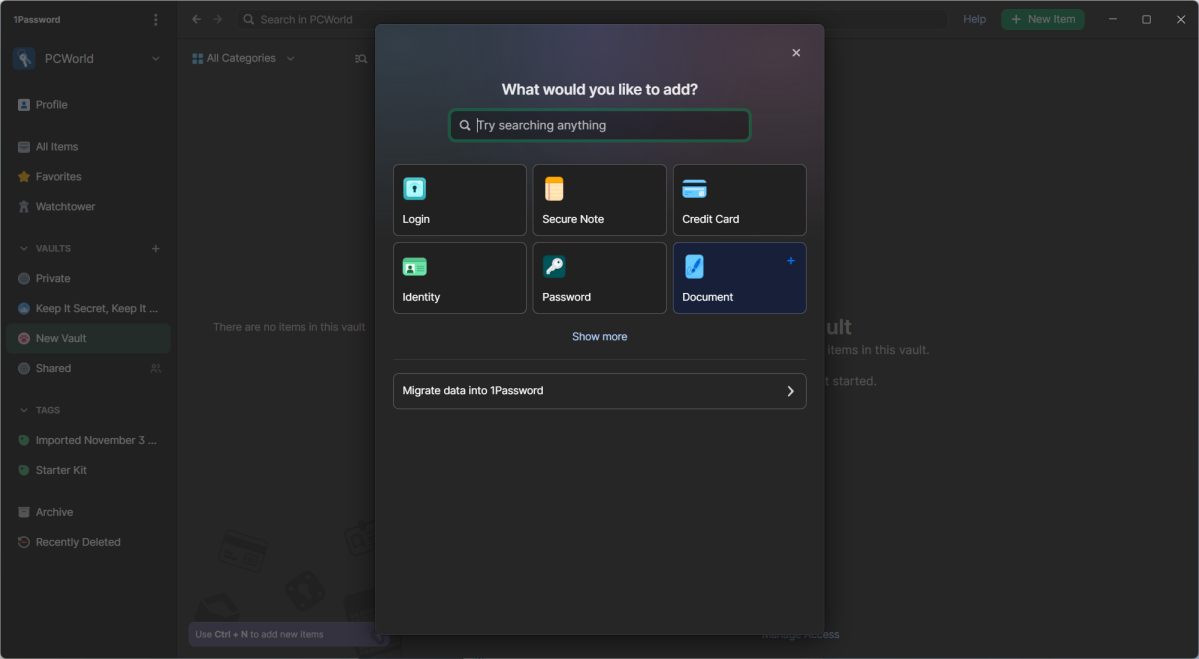
The Windows desktop app and browser extension put information for each entry visible on the same screen as your list of items. You can store a variety of data, with a boatload of options to choose from for item types:
- Login
- Secure Note
- Credit Card
- Identity
- Password
- Document
- API Credentials
- Bank Account
- Crypto Wallet
- Database
- Driver License
- Medical Record
- Membership
- Outdoor License
- Passport
- Rewards
- SSH Key
- Server
- Social Security Number
- Software License
- Wireless Router
To upload files for storage, use the Document item type.
I most often used the Login, Membership, Password, and Wireless Router item types. A considerable amount of detail can be added to some item types. You can pack in information for a single entry, like email, phone number, and other details, as well as extra passwords (like if you have related subaccounts or PIN codes to store as well).
1Password can be used to store and generate 2FA one-time codes for your accounts as well, and it works well. But I generally recommend having a standalone app for two-factor authentication, just as a precaution. If you lose access to 1Password, you lose everything.
PCWorld
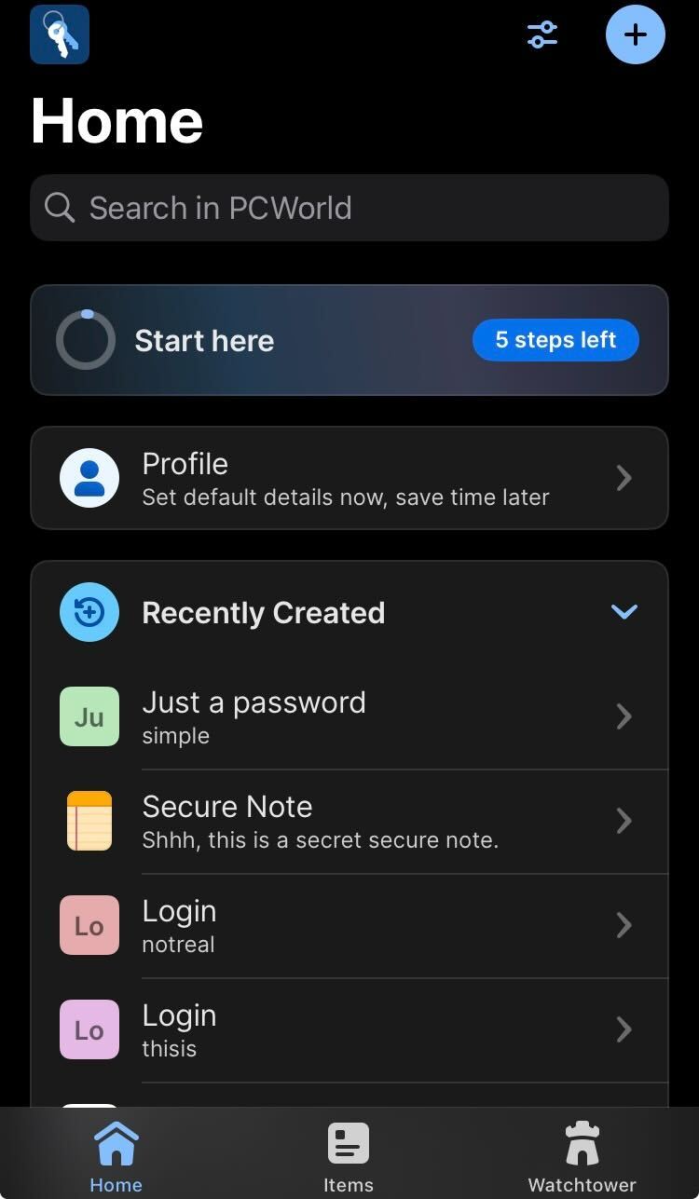
For the desktop views, the far-left column lets you jump between shortcuts. The column next to it shows the entries for the view you’re currently in, whether that’s All Items, a search result, or a subcategory you’ve clicked on.
On mobile, you get a single screen view and can jump between categories by clicking along the options at the bottom of the screen. You can also customize the Home screen with favorite shortcuts.
1Password is efficient at capturing and filling in login information for login pages and apps. Like most rivals, by default it will automatically offer to fill in your credentials on recognized websites. You can change the settings so 1Password requires your input before autofilling data, as well as turning off automatic login upon fill. (I recommend both tweaks as a security precaution.)
PCWorld
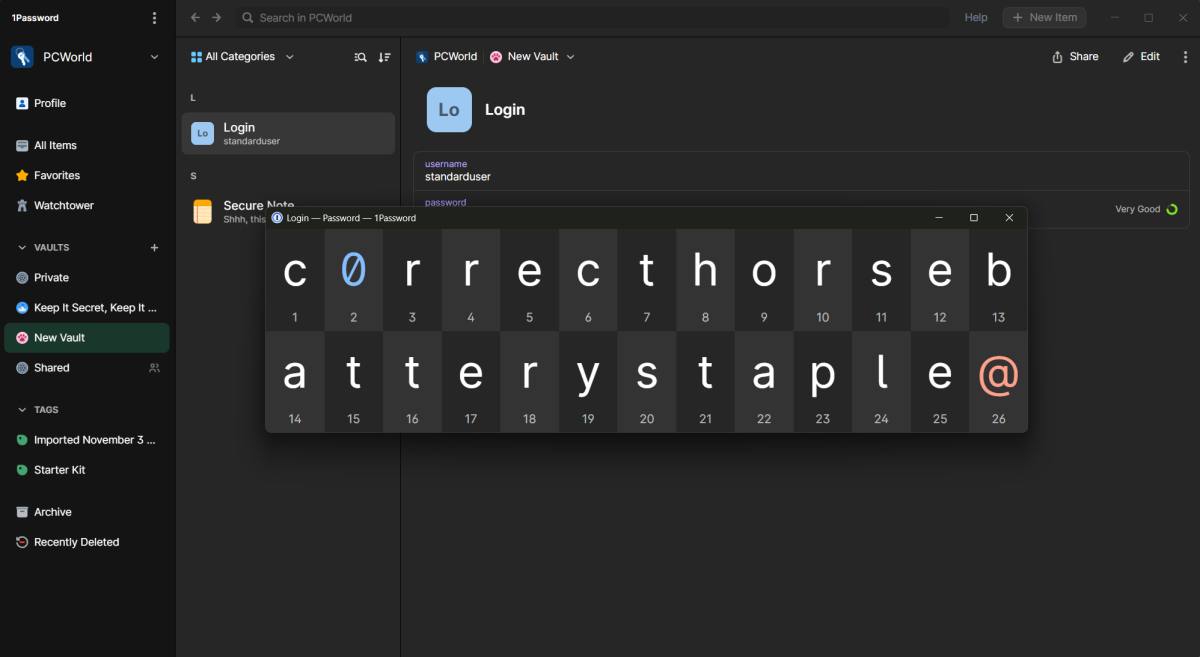
1Password also has one of the best interfaces for manual retyping of passwords—the ability to show a password in large type on screen. Clearly seeing the difference between a capital O and a zero in big characters is a godsend. It’s absolutely one of my favorite features and I wish other rival services offered it.
Tip: For better mobile security, turn off Keep device active for Large Type in your settings. Otherwise, it will override your screen’s automatic sleep and you can end up accidentally having your last used password showing indefinitely for all to see. And wasting battery life, too.
Also cool: You can use Markdown formatting for Secure Notes. My only minor gripe with this feature is that it won’t display properly in the web interface. You’ll see the Markdown notations for formatting, not actual formatted text. It’s a slight bummer, since I was in the web interface semi-often.
How well does 1Password manage passwords and passkeys?
1Password detects the creation of new passwords and passkeys consistently, with seamless saving of them to your vault. Autofill works as smoothly, too. If asked to generate passwords, 1Password by default suggests ones that are 20 characters long. You can generate passwords up to a maximum of 100 characters.
For your saved items, you can sort them in different vaults—essentially what other services would call folders. These vaults can then be grouped together in collections.
Individual items can also be tagged, meaning that you don’t need infinite vaults. Instead, you can store multiple items under bigger umbrellas, and search for subgroups by tag. For example, you could have a “Travel” vault, with tags for airlines, rideshares, and bus services.
As someone who likes to loosely organize and let search handle the rest of the work, this system worked well for me. I had a sense of organization, without the rigidity of making sure everything is in specific folders that I’d have to monitor and manage.
1Password is among the easier services to share passwords through. For individual accounts, you can only share passwords temporarily, with intervals of 1 hour, 1 day, 7 days, 14 days, or 30 days. You can also allow anyone with the link to view, or you can restrict it to specific email addresses. For the latter scenario, the person you’ve shared with will need to input their email address, then input a verification code sent to the address.
PCWorld
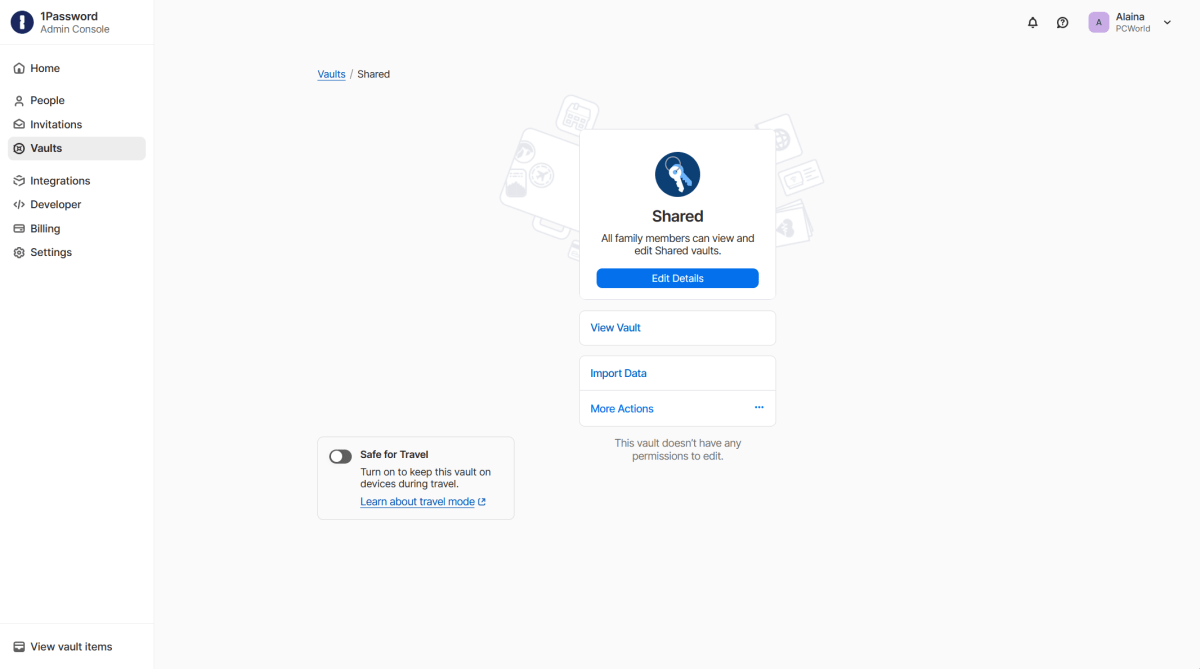
For family accounts, a shared vault is automatically created for the family administrator. Once a family member creates their account, the administrator must confirm their addition to the family for the shared vault to appear for them. (The invite and confirmation is done through the Invitations panel in the Manage Account part of the administrator’s profile.)
All items stored in the Shared Vault are equally editable by family members. To restrict access to View-Only, you’ll have to create a vault and then share it with individual family members. That will allow you to set their permissions level (Allow Viewing, Allow Editing, or Allow Managing).
What else does 1Password let me do?
1Password’s signature feature is its Travel Mode, which allows you to hide vaults when the mode is active. Only those marked as Safe for Travel will appear.
The idea is that while you’re traveling, you could be forced to unlock your device against your will—say at a border crossing. And perhaps you don’t want your work or banking information to be accessible for scrutiny. Turning on this mode means data in anything not marked as Safe for Travel will be invisible and inaccessible.
It’s an interesting feature, though the interface for activation feels hidden. You can only toggle the mode on and off in the web interface—and a very specific part of it at that. You must go to your profile’s Manage Account option, rather than its settings. Any browser works, so you can still do this on a phone—just navigate to my.1password.com/profile.
PCWorld
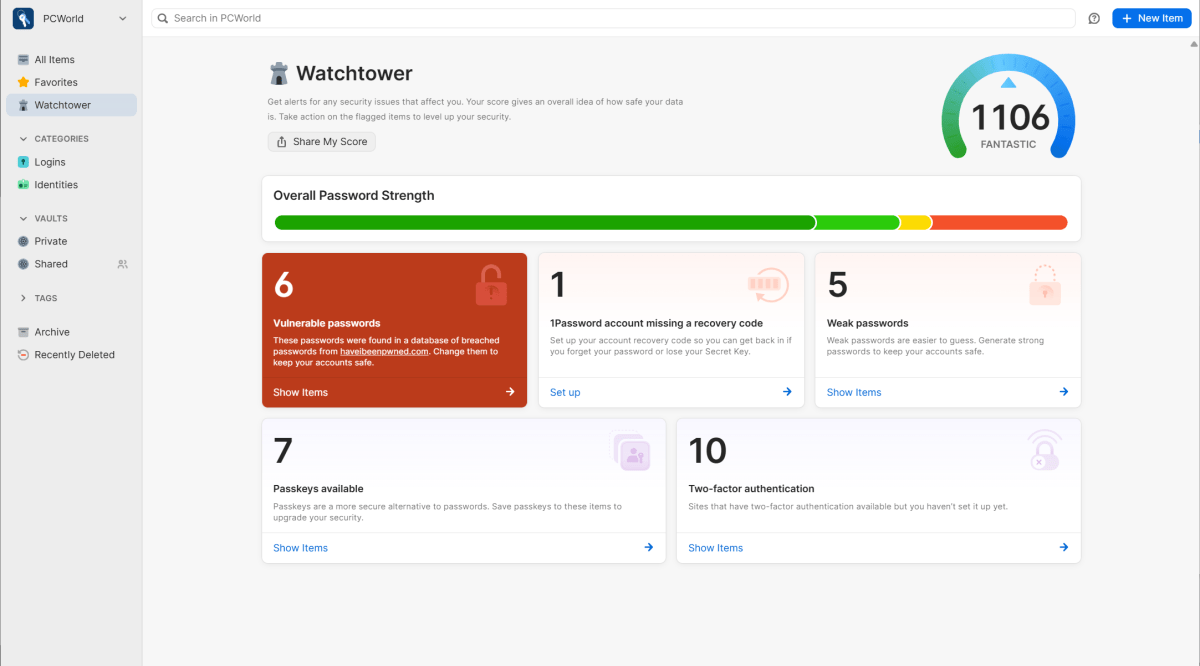
1Password also has its version of dark web monitoring called Watchtower. This feature used to also be a hallmark offering, but rivals have added similar notifications in recent years. 1Password’s variation still feels more polished though, with a numerical rating of your overall data security and action cards for areas of improvement.
Watchtower evaluates your logins against the data in Have I Been Pwned, a site that tracks notable data breaches. If any of your logins have been compromised and are in that database, you’ll get an alert.
For my test account, Watchtower caught several weak passwords, reminded me to set up 1Password recovery code, listed sites I could create passkeys for, and also told me which sites supported two-factor authentication.
I always say this kind of feature isn’t an end-all, be-all solution to tracking data leaks and breaches. But 1Password’s integration with Have I Been Pwned helps speed up any necessary updates to your passwords. I also like that numerical score as a quick temperature read on overall credential security.
How is 1Password’s security and privacy?
1Password encrypts data using 256-bit AES encryption (AES256) with PBKDF2 SHA256, and uses current default of 650,000 iterations. This setting matches the Open Worldwide Application Security Project’s latest recommendations.
A higher number of iterations increases the difficulty of cracking the protection on your saved data, should it ever get leaked or stolen. 1Password is not transparent about an account’s number of iterations, however—you cannot look up this stat in your settings, as you can with competing services. So if you never look up this information at the time of creating an account, you won’t know where you stand if recommended security standards change in the future. And accordingly, you won’t know to reset your password or your Secret Key in order for your account to be reencrypted with the new default.
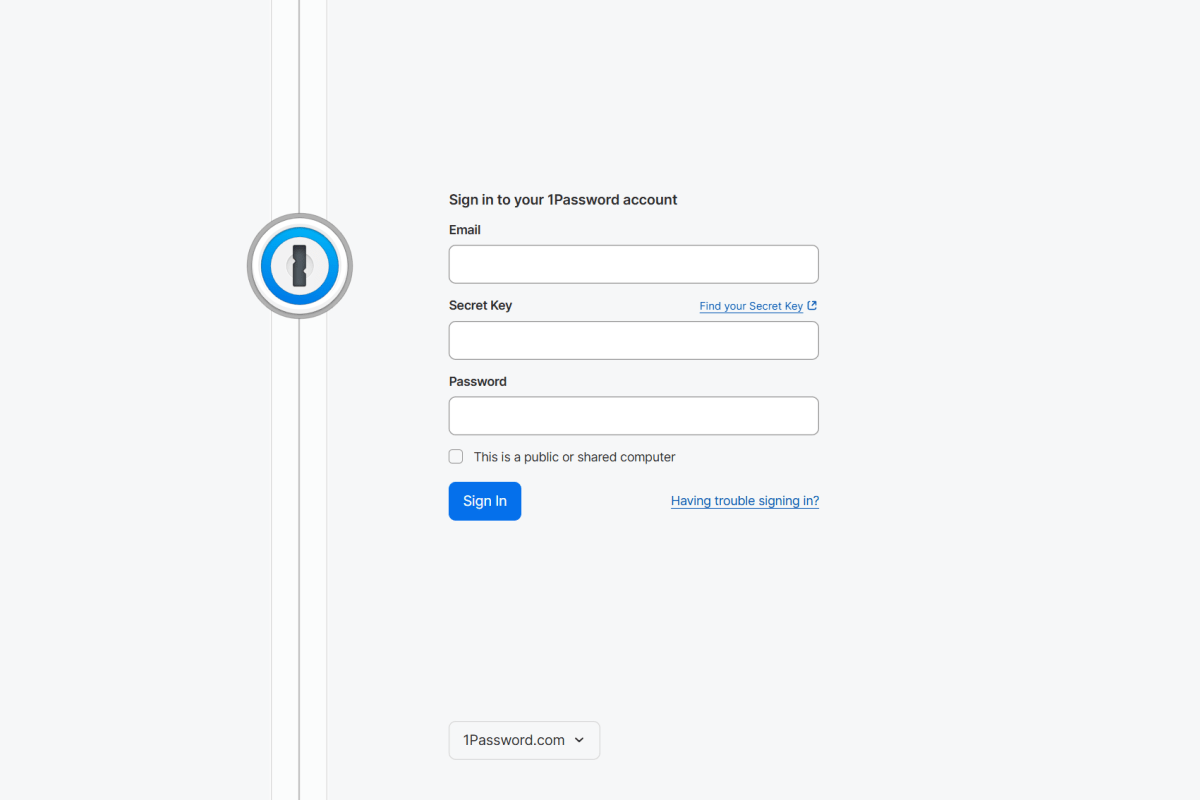
1Password’s standard login screen will always ask for your Secret Key and password.
PCWorld
When asked about its approach, 1Password says its system ensures all accounts are secure without requiring users to dive into such detail, as its two-secret model offers more entropy than a standard password-only system. A representative also said that account passwords are never transmitted directly over a network. Instead, the company relies on the Secure Remote Password protocol, making 1Password more phishing resistant than rivals.
But as a semi-advanced user, this lack of transparency annoys me. I’d prefer to know that information, even if shown as read-only data. The LastPass fiasco burned my unquestioning trust in password managers to keep older accounts properly up-to-date. I also dislike that you must reset your password to update an older 1Password account’s number of iterations—there’s no other way to bring it current.
A final irritation: You cannot change how fast 1Password clears the clipboard on your PC or phone if you copy a password. It is fixed at 90 seconds. You also don’t get the benefit of even this option if you run 1Password in a browser extension alone.
Is 1Password worth it?
1Password’s clean, polished vibe makes password management less of a headache—at least, that’s true for daily use.
But its more complex login system and a dangerous gotcha for accounts held within family plans makes it a harder sell for less technical users who don’t know (or don’t want) to manage these kinds of details. 1Password’s more opaque approach also won’t sit as well with more advanced users accustomed to more transparency and granular information about features.
But for advanced users who want precisely the opposite—the ability to shut off their brains and let someone else sweat the nitty-gritty—1Password may be a perfect fit. Same for moderately tech savvy folks comfortable with proactively backing up their account and its data. The team obviously cares about its approach to security, with a layered design that will feel smart to those accustomed to password management and two-factor authentication.
For a majority of people though, more straightforward, cheaper options exist in the wild.
Best Prices Today: 1Password
Author: Alaina Yee, Senior Editor, PCWorld

A 15-year veteran of technology and video games journalism, Alaina Yee covers a variety of topics for PCWorld. Since joining the team in 2016, she’s written about CPUs, Windows, PC building, Chrome, Raspberry Pi, and much more—while also serving as PCWorld’s resident bargain hunter (#slickdeals). Currently her focus is on security, helping people understand how best to protect themselves online. Her work has previously appeared in PC Gamer, IGN, Maximum PC, and Official Xbox Magazine.